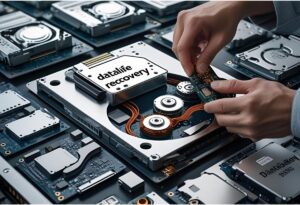
Data Recovery From Failed PC Hard Drive
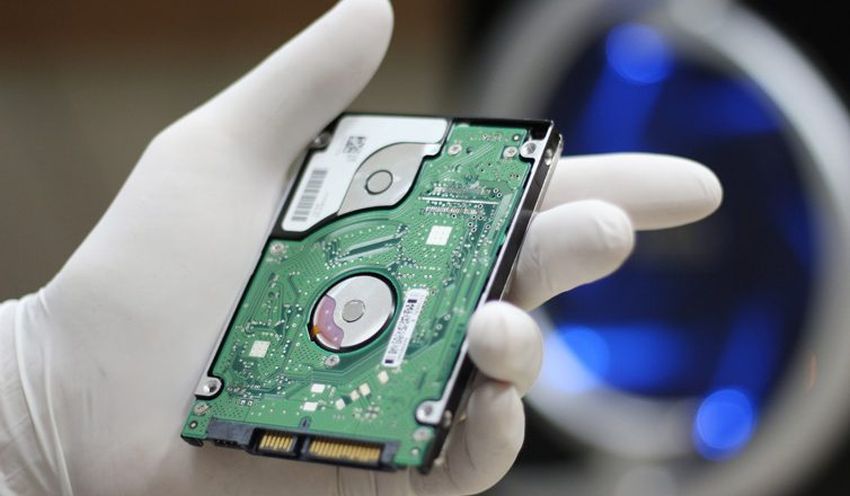
Whether due to sudden failure or gradual decline, a PC hard drive can stop functioning, putting valuable data at risk. From cherished photos to vital business documents, the consequences of a hard drive failure can be frustrating—or even devastating. Fortunately, data recovery is often possible, even in seemingly hopeless situations.
In this guide, we’ll walk you through the causes of PC hard drive failure, how to diagnose the problem, and what steps to take to safely attempt data recovery.
Why Do PC Hard Drives Fail?
Hard drives can fail for a variety of reasons, often falling into one of two categories:
1. Hardware Failure
This includes physical issues such as:
- Overheating or power surges
- Mechanical wear and tear
- Head crashes or platter damage
- Loose or damaged internal components
- Motherboard or RAM issues
2. Software/System Issues
These are often related to:
- Corrupted files or drivers
- Operating system (OS) failure
- Malware or ransomware attacks
- Improper shutdowns or software crashes
Understanding the root cause can help determine the best course of action for recovery.
Initial Troubleshooting: Is the Hard Drive Really the Problem?
Before jumping into recovery mode, it’s important to rule out other components:
Step 1: Isolate the Motherboard
Disconnect all peripheral components from the motherboard—this includes the graphics card, storage drives, optical drives, and external USB devices. Leave only essential parts: CPU, RAM, and power supply.
Try to access the BIOS. If you can’t reach it, the issue may lie with the motherboard or processor.
Step 2: Test RAM and Clean Connectors
RAM can degrade or build up dust on connectors over time. Remove the RAM sticks, clean the connectors with an appropriate electrical contact cleaner, and reinstall them.
Test different RAM slots and modules if available.
Step 3: Use a Bootable USB or Live CD
If the BIOS is accessible, boot the system using a Live CD or USB key with a lightweight OS (like Ubuntu or Windows PE). This allows you to run the computer independently of the internal hard drive.
If the system boots successfully from the external media, the issue likely lies with the hard drive.
Data Recovery: What to Do If the Drive Fails
If the PC’s hard drive is not recognized or cannot boot, here are your options:
1. Remove and Connect to Another Computer
- Safely remove the failed hard drive and connect it to another working PC using a SATA-to-USB adapter, external enclosure, or directly via SATA.
- If the drive is still functional, it may appear as an external drive, and you can manually copy the data.
2. Use Data Recovery Software
If the drive is detected but files aren’t accessible:
- Use trusted recovery tools like Recuva, EaseUS Data Recovery, R-Studio, or PhotoRec to scan for lost files.
- Avoid installing recovery software on the failed drive, as it may overwrite the data you’re trying to recover.
3. Listen for Warning Signs
Clicking, grinding, or beeping sounds from the hard drive usually indicate mechanical failure. In such cases, power off the drive immediately to prevent further damage. Attempting to recover data at home can make things worse.
When to Call a Professional
If your hard drive has suffered:
- Physical or mechanical damage
- Severe file system corruption
- Firmware failure
Then it’s best to consult a professional data recovery service. Experts can perform advanced diagnostics, use cleanroom environments for disassembly, and often retrieve data that software alone cannot access.
Trying DIY recovery on a physically damaged drive may result in permanent loss.
Final Thoughts: Prevention Is the Best Protection
While data recovery from a failed PC hard drive is often possible, it’s not always guaranteed—especially in severe hardware failure cases. That’s why it’s important to take proactive measures:
- Back up your data regularly to cloud storage or an external drive.
- Use surge protectors to guard against power issues.
- Keep your system clean and cool to avoid overheating.
- Monitor drive health using tools like CrystalDiskInfo or SMART monitoring apps.
If your PC fails, don’t panic—stay calm, follow the diagnostic steps, and if necessary, get help from a professional. The most important thing is to avoid actions that could worsen the damage.