How To Get Data Recovery From A Hard Drive Of Another Computer
Data loss due to an unexpected PC component failure is a common problem faced by many users. Often, it’s not the storage device itself that’s at fault, but rather a failure in other components that prevents access to the system. In such cases, the data on the hard drive remains inaccessible, leading to frustration. However, there are ways to retrieve this data, even from a hard drive of another computer, using simple and cost-effective methods. In this article, we’ll guide you through the steps to recover data from a hard drive of a different computer.
Causes of Hard Drive Failures
A frequent culprit of data loss is the hard drive, whether it’s a mechanical HDD (Hard Disk Drive) or a SSD (Solid State Drive). Both types have their unique characteristics, and understanding the type of failure can help in the data recovery process.
1. Mechanical Hard Drives (HDD)
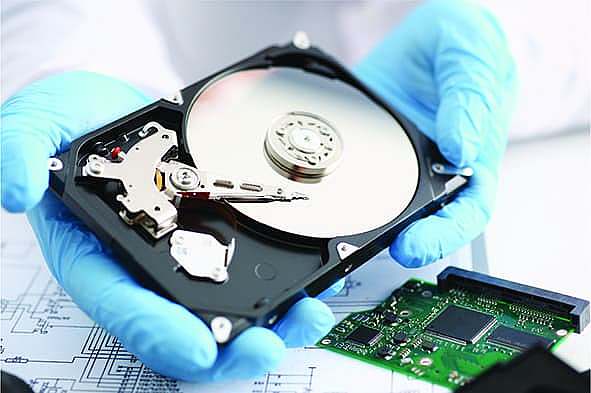
HDDs rely on mechanical components, such as spinning platters and a read/write arm. Due to their moving parts, they are prone to physical damage. The common symptoms of a failing HDD include:
- Louder-than-normal noises (clicking or grinding sounds)
- Slow file transfers
- Failure to start the system or boot up the computer
2. Solid State Drives (SSD)
SSDs, unlike HDDs, have no moving parts. They are generally faster and more durable, but when they fail, it tends to be sudden and without warning. An SSD failure typically results in:
- The drive ceases to be recognized by the system
- The drive becomes completely inaccessible without any prior warning or error signs
3. Assessing the Health of Your Drive
Before jumping into recovery efforts, it’s essential to determine the health of the drive. Tools like HDDScan, Disk Checkup, and CrystalDiskInfo can assess the health of your hard drive. Windows also has built-in tools such as CHKDSK, which can help diagnose and fix basic issues with your drives.
Steps to Recover Data from a Hard Drive of Another Computer
If the issue lies with the hard drive, but the computer fails to boot, follow these steps to recover your data.
Step 1: Remove the Hard Drive from the Failing PC
- Power off the PC: Ensure that the computer is completely shut down before attempting to remove any components.
- Disconnect the power source and any peripherals.
- Open the computer case to access the hard drive. This typically involves unscrewing the drive from the mounting brackets.
- Disconnect the hard drive from the motherboard and power supply.
Once the hard drive is removed, it’s time to connect it to a working computer for data recovery.
Step 2: Connect the Hard Drive to a Working Computer
You’ll need an adapter or an external enclosure to connect the removed hard drive to a working computer. Depending on the type of hard drive (HDD or SSD), you may need:
- SATA to USB adapter for 2.5-inch or 3.5-inch drives (most common for HDDs)
- External SSD enclosure for 2.5-inch SSDs
- For laptop hard drives, you may need a special 2.5-inch SATA-to-USB cable.
After connecting the hard drive to the working computer:
- Power up the computer and allow it to detect the external drive.
- Access the drive through “File Explorer” (Windows) or “Finder” (Mac). If the drive is detected, you’ll be able to view and copy the data to the working computer.
Step 3: Data Recovery if the Drive Isn’t Detected
If the drive is not showing up on the working computer, don’t panic. There are a few steps you can take:
- Check the connections: Ensure that the cables and adapters are properly connected.
- Try a different USB port or use a different computer if possible.
If the drive still isn’t recognized, data recovery software can help. Programs like Recuva, EaseUS Data Recovery, or Disk Drill can scan for deleted or hidden files and help retrieve data even if the drive is not easily accessible.
Step 4: Using Data Recovery Software
When the hard drive is recognized by the working computer but files are inaccessible or corrupted, data recovery software is your next option. These programs scan the drive for recoverable data and can extract files, even from damaged or corrupted sections of the drive. Here’s how you can use data recovery software:
- Install the software on the working computer (preferably on a separate drive from the affected one).
- Select the drive you wish to scan.
- Run a deep scan to locate all recoverable files. This may take time depending on the size and condition of the drive.
- Preview and recover: Once the scan is complete, preview the files and select the ones you want to recover. Save them to a different drive to prevent overwriting.
Step 5: For Physically Damaged Drives, Seek Professional Help
If the hard drive is physically damaged (e.g., it makes unusual clicking noises or isn’t recognized at all), it may require professional data recovery services. These experts have the necessary tools and cleanroom facilities to recover data from physically damaged drives, though this service can be expensive.
When Is Data Recovery More Complicated?
Data recovery can be more challenging in the following scenarios:
- Corrupted drive: If the drive is corrupted due to bad sectors or file system issues, data recovery may be slow, or some files may be permanently lost.
- Overwritten data: If new data has overwritten the old data, recovery becomes increasingly difficult.
- Severe physical damage: In cases where the hard drive has physical damage (e.g., damaged read/write heads, burnt components), recovery might require specialized equipment and expertise.
Conclusion
Recovering data from a hard drive of another computer is often straightforward if you act quickly and follow the right steps. First, assess whether the hard drive is still functional and retrieve it from the broken system. Then, connect the drive to a working computer and use data recovery software if needed. For physically damaged drives, seeking professional help may be necessary.
Remember, the sooner you attempt recovery, the better your chances of success. If you face persistent problems or cannot recover the data on your own, do not hesitate to consult a professional data recovery service.